Guides
How to Record Piano With Your Phone for Transcription
How to record piano with your phone for clear sound and accurate transcription: phone placement, the right settings, room tips, and mistakes to avoid.

By Antoine Duno
Updated September 19, 20268 min read
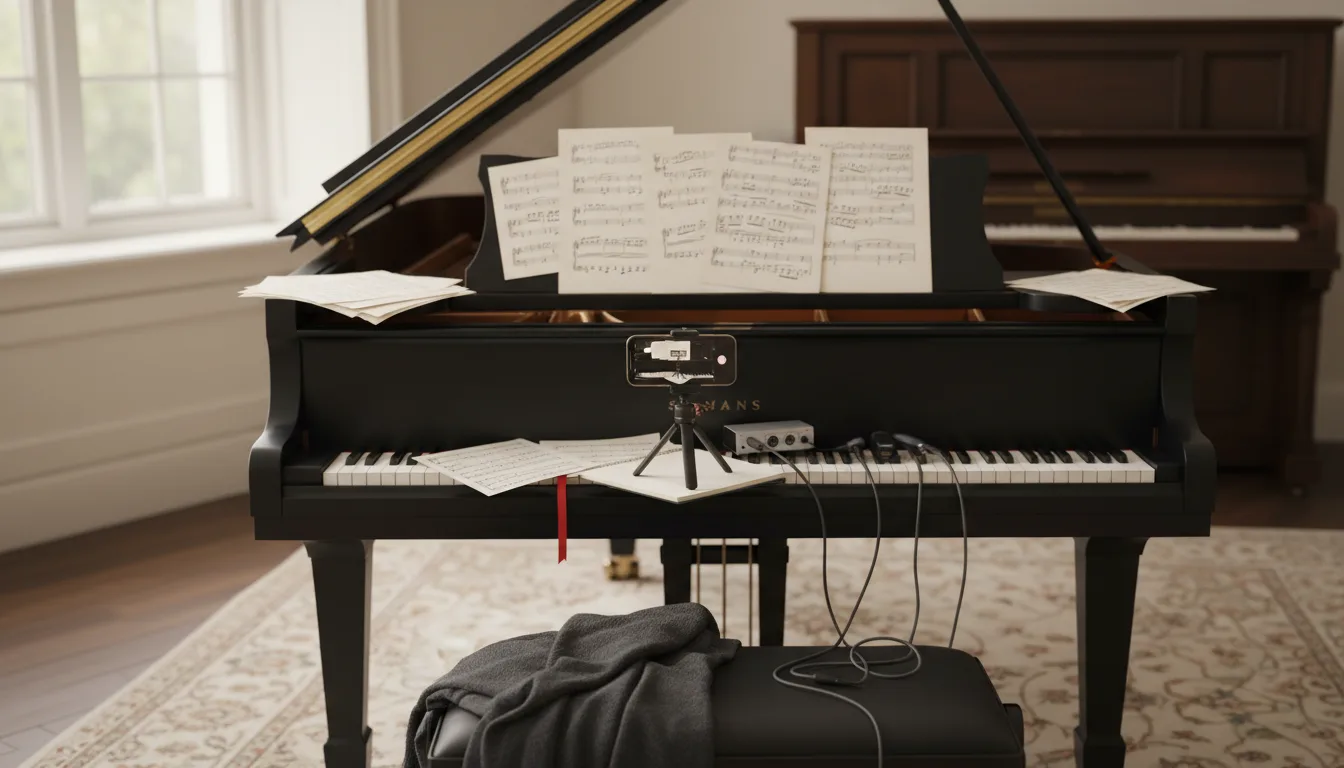
The phone in your pocket is probably the most convenient piano recorder you own. It is always nearby, it is quick to start, and for many purposes it sounds surprisingly good.
But a recording that sounds fine to your ears is not always a good recording for transcription. Software that turns audio into sheet music needs to hear each note clearly, and small problems like room echo, a noisy fan or automatic noise reduction can turn into wrong notes on the page.
This guide shows how to get clean, transcription-ready piano recordings with nothing more than a phone.
Why recording quality matters for transcription
When you listen to a recording, your brain fills in gaps. It ignores the fridge hum and understands that the blurry chord is a C major triad under the pedal.
Transcription software has to work from the sound alone. Noise can look like faint notes. Echo makes notes seem to last longer than they did. Clipping creates harsh extra frequencies that can be mistaken for pitches.
The cleaner your recording, the less time you spend fixing the score afterward. If you are new to the whole process, start with our overview of how to convert a piano recording to sheet music, or try a take on the transcription tool to see what it hears.
Step 1: Prepare the room
The room affects your recording more than the phone does.
- Turn off noise sources: fans, air conditioning, dishwashers, TVs.
- Close windows and doors to reduce traffic and household sounds.
- Silence the phone. Turn on Do Not Disturb or airplane mode so calls and notifications do not interrupt the recording. Check that your recording app still works in airplane mode.
- Tame the echo. Bare walls and hard floors create reflections. Rugs, curtains, sofas and bookshelves all help absorb them.
- Tune the piano if you can. An out-of-tune piano sounds wrong on playback, and notes between semitones are harder to name correctly.
Step 2: Place the phone well
There is no single perfect position. The distances below are our rule-of-thumb starting points, not a published standard or a measured result, so test them.
| Piano type | Starting position to try | Why |
|---|---|---|
| Upright piano | 2 to 3 feet away, around keyboard height or slightly above, aimed at the center | Balances bass and treble without picking up too much room |
| Upright, lid open | Same distance, slightly higher, angled toward the opening | Captures more direct string sound |
| Grand piano, lid open | 3 to 5 feet away, facing the curve of the case | The lid projects sound in that direction |
| Digital piano (speakers) | 2 to 3 feet in front of the speakers | Avoids the vibration of sitting on the instrument |
A few rules apply everywhere:
- Use a stand or a stable surface. Holding the phone creates handling noise.
- Do not put the phone on the piano itself. Vibrations travel straight into the microphone.
- Know where your microphones are. Many phones have several. Keep the bottom and top edges clear, and do not cover them with a case or your hand.
- Avoid the corner of the room. Bass builds up in corners and can make low notes boomy and muddy.
Step 3: Choose the right settings
On iPhone (Voice Memos)
Voice Memos is built in and works well for piano if you check a few settings.
- Avoid Voice Isolation. In Apple's Voice Memos guide, you open Control Center, tap Voice Memos at the top, and choose Voice Isolation to filter out background sounds or Wide Spectrum to include them. For a piano, choose Wide Spectrum. Apple notes it is not available on all iPhone models.
- Pick a recording mode. Apple's guide explains that you can go to Settings, then Apps, then Voice Memos, and choose Mono, Stereo or Spatial Audio under Recording Mode. Stereo is a natural choice for piano.
- Do not look for a Lossless switch. Voice Memos on Mac has an Audio Quality setting with Compressed and Lossless choices, but the iPhone guide we read documents no such option, only the recording modes above. Advice to switch iPhone Voice Memos to Lossless does not match Apple's own guide.
On Android
Recorder apps vary between phone makers, and our page on Android recorder settings for piano goes through two of them in more detail. Look for these options in your app's settings:
- The highest quality or an uncompressed format, such as WAV, if your app offers one.
- Noise reduction or speech enhancement: off. These features are designed for voices and can damage a piano's sound.
- Automatic gain control: off, if the app allows it, so quiet passages are not artificially pumped up.
Any phone
- Close other apps that might use the microphone.
- Check that your app keeps recording when the screen locks, so a take does not stop unexpectedly.
- Check storage before a long session. Higher-quality formats create bigger files.
Step 4: Set the level and avoid clipping
Most phone recorders do not show a detailed level meter, but you can still avoid distortion.
- Play the loudest passage of your piece during a test recording.
- Listen back. Harsh, crackly or flattened peaks mean the signal is clipping.
- If it clips, move the phone farther away. Distance is your volume knob.
A recording that is a little quiet can be turned up later. A clipped recording cannot be repaired.
Step 5: Play for the microphone
A few performance habits make a noticeable difference for transcription.
- Pedal cleanly. Change the sustain pedal with each harmony. Holding it through several chords makes notes overlap, which is one of the hardest things for any transcription tool to untangle.
- Keep a steady pulse if your goal is readable sheet music. Expressive rubato is beautiful, but a steady beat makes rhythms much easier to notate.
- Leave a second or two of silence at the start and end.
- Count yourself in quietly in your head rather than out loud.
- Record sections separately if a piece is long, so one mistake does not ruin a whole take.
Step 6: Handle the file
Once you have a good take:
- Name it clearly, for example "Nocturne-draft-take3".
- Trim long silences, talking and bench noise at the start and end. Avoid adding effects like reverb, compression or noise reduction.
- Export as WAV or high-quality MP3. Our converter accepts MP3, WAV and M4A, up to 25 MB and 10 minutes. As arithmetic: CD-quality stereo WAV (44.1 kHz, 16-bit) is about 10.6 MB a minute, so a WAV reaches 25 MB in roughly two and a half minutes. For a longer take, export a high-quality MP3 or M4A.
- Keep the original. If you edit the file, save a copy so you can always go back.
Then upload it and use the free 30-second preview to check whether the recording is clean enough before converting the full piece.
Common mistakes and quick fixes
| Mistake | What it causes | Quick fix |
|---|---|---|
| Voice Isolation or noise reduction on | A sound filtered for speech, which may thin the piano | Switch to a full-range mode such as Wide Spectrum |
| Phone on the piano lid | Rumble and vibration noise | Use a stand or a separate table |
| Too close to the strings | Clipping, unbalanced register | Move back a foot at a time |
| Recording from across the room | Echo, blurry notes | Move closer |
| Pedal held through chord changes | Overlapping notes in the transcription | Change pedal with the harmony |
| Other instruments or singing along | Extra wrong notes | Record the piano alone |
| TV or conversation in the background | Stray notes and noise | Record in a quiet room |
When to upgrade your gear
A phone is enough for most transcription work. Consider extra equipment only when you have already fixed the room and placement.
- A small tripod or phone clamp is the most useful first purchase. It makes placement repeatable.
- An external microphone designed for your phone can improve clarity and stereo image. Apple's guide notes you can record in stereo with an external stereo microphone or audio interface that works with iPhone.
- Digital piano owners can often skip the microphone entirely by recording MIDI, since the MIDI Association notes that many digital pianos can create and play Standard MIDI Files (check your manual). That captures the exact notes and velocities with no room noise at all. Learn more in our explainer on what a MIDI file is.
What a clean recording will and will not fix
A great recording removes a lot of avoidable errors, but it does not make transcription magic. If the recording is a video for an ABRSM performance grade, that board has its own rules, covered in ABRSM performance grade video recording rules. Very dense chords, fast ornaments and heavy pedal remain challenging for any automatic tool. If a passage still comes out wrong, fix it in notation software or work it out using our guide on transcribing piano music by ear. If you are weighing different conversion tools, our audio to MIDI converter comparison covers the main options.
Frequently asked questions
Where should I put my phone to record a piano?
There is no published standard, so treat these as starting points to test. For an upright, try the phone about 2 to 3 feet away, around keyboard height, pointing at the center. For a grand with the lid open, try 3 to 5 feet, facing the curve of the case. Make a short test recording and adjust.
Should I use Voice Isolation when recording piano on iPhone?
No. Apple describes Voice Isolation as the mode that filters out background sounds, and a piano is not a voice, so it may thin out the sound. Choose Wide Spectrum, which Apple says includes background sounds, where your iPhone offers it. It is not available on all models.
Is a phone good enough to record piano for sheet music conversion?
Often, yes. Modern phones capture enough detail for transcription if the room is quiet, the phone is placed well, and nothing clips. The biggest improvements usually come from reducing noise and echo, not from buying equipment.
Should I record in mono or stereo?
Either works. Our tool mixes the audio down to mono before analysis, so stereo adds nothing for note detection, though it sounds more natural when you listen back. A clean, undistorted signal with little room noise matters far more than the channel count.
How loud should my recording be?
Loud enough to be clear, but with the loudest passages never hitting the maximum level. Distortion from clipping is permanent and confuses transcription software. Test the loudest section of your piece before the real take.
Sources
Pages read on 19 September 2026.
- Apple: Make a recording in Voice Memos on iPhone (Voice Isolation and Wide Spectrum in Control Center, Recording Mode, external stereo microphones; no Audio Quality setting)
- Apple: Change settings in Voice Memos on Mac (the Compressed and Lossless setting, documented for Mac)
- MIDI Association: About MIDI, part 4: MIDI files (digital pianos can create and play Standard MIDI Files)
- Piano to Sheet Music's transcription page and code for the upload limits (MP3, WAV or M4A, 25 MB, 10 minutes) and the mono downmix
Keep reading
How to Convert a Piano Recording to Sheet Music
How to turn a piano recording into sheet music: prepare the audio, convert it, check the score and fix errors. A practical piano to sheet music guide.
9 min read
Own a Digital Piano? Record MIDI, Skip Transcription
A digital piano can record exactly which keys you pressed as MIDI, which beats transcribing audio. Three ways to record it and how to turn it into a score.
11 min read
Voice Memo to Sheet Music: iPhone and Android
Turn a piano voice memo into sheet music: the recorder settings to check, how to export the audio file on iPhone, Pixel and Samsung, and what to upload.
9 min read
Sheet Music From a YouTube Piano Video: What Works
Transcription tools need an audio file, not a YouTube link — and whose video it is matters. The routes that work, for your own videos and beyond.
7 min read
Sheet Music From Spotify: What Actually Works
A Spotify stream can't be transcribed directly — it isn't a file you own, and ripping one breaches the terms. The honest routes that work.
7 min read
How We Measure Piano Transcription Accuracy
We measured where automatic piano transcription breaks: the protocol, the onset F1 numbers on named test pieces, and six uncorrected examples.
10 min read